
How to Add and Activate the Peacock Channel on Amazon Prime Video Channels
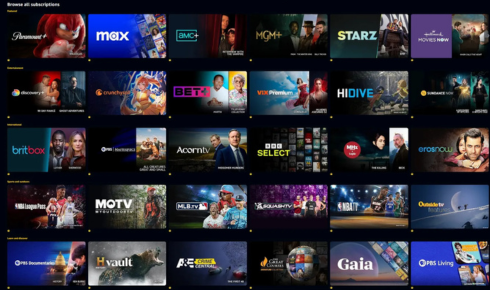
In the ever-expanding universe of streaming, the partnership between major platforms has created a convenient hub for consumers: Amazon Prime Video Channels. This service allows you to subscribe to premium networks and standalone streamers directly through your Amazon account, consolidating billing and often integrating content into a unified interface. One of the most popular channels available is Peacock, NBCUniversal’s streaming service, offering everything from Premier League soccer and the Olympics to iconic sitcoms like The Office and Parks and Recreation, alongside original series and blockbuster films. This comprehensive, 1500-word guide will walk you through every step of adding, activating, and mastering Peacock via Amazon Prime Video Channels.
You May Also Like- Peacock : Start Streaming Today with This Simple Login Guide Visit : Peacocktv.com/tv
Part 1: Understanding the Model – Prime Video Channels vs. Standalone Apps
Before you begin, it’s crucial to understand how this integration works. You are not downloading the standalone Peacock app from your device’s app store. Instead, you are purchasing a Peacock Premium subscription through Amazon. Your payment is handled by Amazon, and the Peacock content becomes available in two primary places:
- Within the Prime Video App: A dedicated “Peacock” channel row will appear, and Peacock series and movies will be integrated into Amazon’s search and browse functions.
- Via the Standalone Peacock App (using Amazon credentials): You can also use the Peacock app on most devices by signing in with your Amazon account, not a separate Peacock password.
This model offers the convenience of a single bill (your Amazon account) and seamless discovery within Prime Video, but it’s important to note that Peacock Premium through Amazon does not include the ad-free “Peacock Premium Plus” tier. Your subscription will include ads during content playback, with some exceptions like kids’ profiles and a few specific shows.
Part 2: Prerequisites and Preparation
To ensure a smooth setup, have the following ready:
- An active Amazon Prime membership or an Amazon account with Prime Video access: You do not necessarily need a full Amazon Prime membership to use Prime Video Channels. A standalone Prime Video subscription is sufficient.
- A stable internet connection.
- Access to your Amazon account credentials (email and password).
- A compatible device: This includes Amazon Fire TV/stick, smart TVs (LG, Samsung, Vizio, etc.), Roku, Apple TV, Android TV, game consoles (Xbox, PlayStation), iOS/iPadOS or Android mobile devices, and web browsers.
Part 3: Step-by-Step Activation Process
Method A: Adding Peacock via a Web Browser (Recommended for Initial Setup)
- Log In: Go to Amazon.com and sign in to your account.
- Navigate to Prime Video: Hover over the “Accounts & Lists” menu and click on “Prime Video” or type “Prime Video” into the Amazon search bar and select it.
- Find the Channels Store: Once inside the Prime Video interface, look for a tab or link labeled “Channels,” “Prime Video Channels,” or “Store.” This is typically located in the top navigation menu.
- Browse or Search for Peacock: You can scroll through the available channels or use the search function within the Channels store. Type “Peacock” and select it.
- Select Your Plan: You will be presented with the Peacock Premium plan. Carefully read the details: price (typically $5.99/month as of this writing), the ad-supported nature, and what’s included. Note that the free, tier of Peacock is not available through Amazon Channels.
- Subscribe: Click the “Start your free trial” or “Subscribe now” button. Amazon will confirm your payment method (a 7-day free trial is often available for new subscribers). Confirm the subscription.
- Confirmation: You will see an on-screen confirmation, and you will receive an email from Amazon confirming your Peacock channel subscription.
Method B: Adding Peacock Directly on Your Streaming Device (e.g., Fire TV, Smart TV)
- Launch the Prime Video App on your device.
- Go to the Channels Section: Using your remote, navigate to the “Store” or “Channels” section within the app. This is often found in the main sidebar or under a “Browse” tab.
- Locate Peacock: Find the Peacock channel icon. You may find it featured or need to search for it using the device’s on-screen keyboard.
- Subscribe: Select Peacock, review the plan details, and choose “Subscribe” or “Start Free Trial.” You will be prompted to confirm using your Amazon account PIN if you have parental controls set up.
- Channel Added: Once confirmed, you will be returned to the Prime Video home screen. A new row for “Peacock” should appear, and Peacock content will start populating in your guide.
Part 4: Accessing and Watching Peacock Content
Within the Prime Video App:
- Dedicated Channel Hub: Look for the Peacock logo/row. Selecting it will open a branded Peacock hub within Prime Video, featuring curated rows like “Peacock Hits,” “Trending Now,” “Sports on Peacock,” etc. It mimics the standalone app’s experience.
- Integrated Search: One of the biggest benefits. When you search for a show like Yellowstone or The Office within the Prime Video app, the results will display the Peacock versions alongside any available on other services or for purchase. Selecting them will launch directly from the Peacock channel.
- Watchlist/My Stuff: Titles you add from the Peacock channel can be integrated into your Prime Video watchlist.
Using the Standalone Peacock App (Alternative Access):
If you prefer the native Peacock app interface on your phone, tablet, or other device, you can use your Amazon credentials to log in.
- Download the Peacock app from your device’s app store (Apple App Store, Google Play, etc.).
- Open the app and proceed to the sign-in screen.
- Look for and select the option: “Sign in with a Provider” or “Sign in with TV Provider.” (Do not try to sign in with an email/password.)
- From the list of providers, scroll and select “Amazon” or “Prime Video Channels.”
- You will be redirected to an Amazon login page (either in-app or via a web browser). Enter your Amazon account email and password to authenticate.
- Once authorized, you will be logged into the Peacock app, with full access to your Peacock Premium subscription.
Important: This “Provider” sign-in is the key. Your subscription is linked to your Amazon account, not a separate Peacock one.
You May Also Like- Peacock : Start Streaming Today with This Simple Login Guide Visit : Peacocktv.com/tv
Part 5: Managing Your Subscription
All management is done through your Amazon account, not through Peacock. This is a critical point for customer support and billing.
- To Cancel, Change Payment, or View Status:
- Go to Amazon.com and log in.
- Hover over “Accounts & Lists” and click “Your Account.”
- Under “Digital content and devices,” click “Prime Video.”
- Click on “Channels” or go to “Your Memberships & Subscriptions.”
- Find Peacock in your list of channels and click “Cancel Channel” or “Manage Subscription.” Here you can turn off auto-renewal, update payment methods, or see your next billing date.
- Billing: You will be charged on your Amazon bill. The subscription will auto-renew monthly until canceled.
- Cancellation: You can cancel anytime. You will retain access until the end of the billing period you’ve already paid for.
Part 6: Troubleshooting Common Issues
- “I subscribed, but I don’t see the Peacock row in Prime Video.” Try force-closing and restarting the Prime Video app on your device. If that fails, log out of your Amazon account on the device and log back in. It can take a few minutes for the channel to populate.
- “I can’t sign in to the Peacock app with Amazon.” Ensure you are selecting “Sign in with a Provider/TV Provider” and then choosing “Amazon” from the list. Do not use the standard email/password fields. Clear the Peacock app’s cache/data or reinstall it if the provider option doesn’t appear.
- “Content says I need to subscribe, even though I have.” This usually means you are trying to access content exclusive to the more expensive Peacock Premium Plus (ad-free) tier, which is not offered through Amazon Channels. Alternatively, ensure you are logged into the correct Amazon account that holds the subscription.
- “I’m being billed by both Amazon and Peacock directly.” This means you have two separate subscriptions. You must cancel the direct subscription with Peacock to stop their billing, while managing the Amazon one through your Amazon account.
- “Playback errors or poor quality.” Check your internet speed. Restart your device and router. Ensure your Prime Video and device software are up to date.
Part 7: Weighing the Pros and Cons
Pros:
- Billing Consolidation: One monthly bill from Amazon.
- Integrated Discovery: Search and browse Peacock content alongside other Prime and channel offerings.
- Ease of Use: Quick subscription without creating a new account/password.
- Device Flexibility: Access through Prime Video app or standalone Peacock app.
- Free Trial: Often eligible for Amazon’s standard free trial for new channel subscribers.
Cons:
- Limited Tier Options: No access to the ad-free “Premium Plus” tier or the free, ad-supported tier. You are locked into the ad-supported Premium plan.
- Potential for Delayed Updates: In rare cases, new Peacock features or live events might roll out slightly slower on the Channel integration.
- Customer Support Path: For billing issues, you contact Amazon. For content/playback issues within the Peacock ecosystem, you may need to contact Peacock, which can create a support loop.
- Possible Price Increases: If Peacock raises its price, Amazon Channels will reflect that, and you cannot lock in a longer-term discount sometimes offered by Peacock directly.
You May Also Like- Peacock : Start Streaming Today with This Simple Login Guide Visit : Peacocktv.com/tv
Conclusion
Adding and activating Peacock through Amazon Prime Video Channels is a streamlined process designed for maximum convenience. By following the steps outlined—subscribing through the Amazon website or your device’s Prime Video app, then accessing content either within Prime Video or by using your Amazon credentials on the standalone Peacock app—you unlock a vast library of entertainment with minimal friction. The key takeaways are to manage your subscription solely through your Amazon account and to use the “Sign in with Provider” method for the Peacock app. While the lack of an ad-free tier option is a notable limitation, for viewers who prioritize a unified streaming hub and simplified billing, the Amazon Prime Video Channels pathway to Peacock Premium represents a highly effective and user-friendly solution in the modern cord-cutting landscape.